

Description
Download 123 Photo Viewer – Fast, Free & Secure Photo Gallery App
Overview
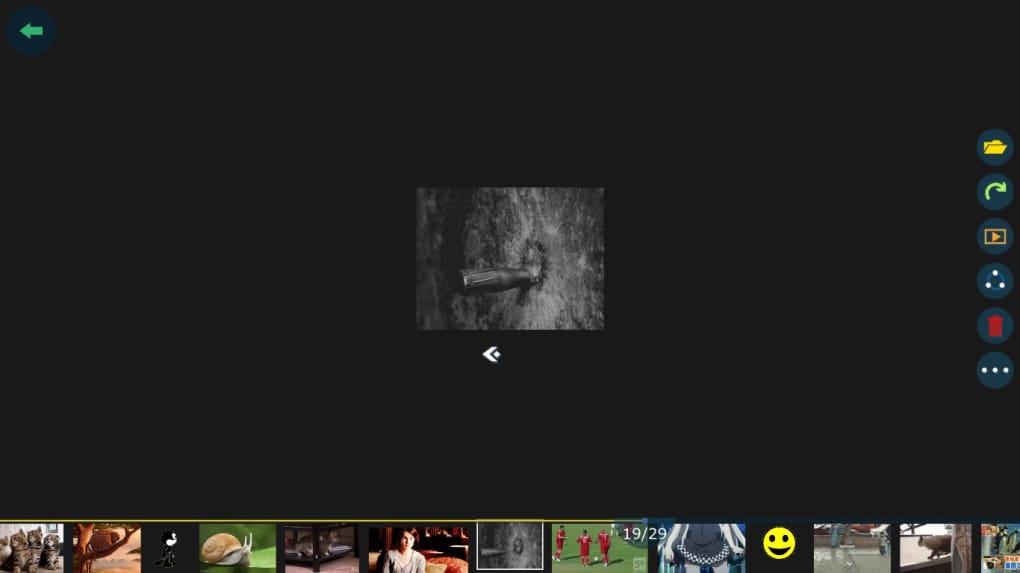
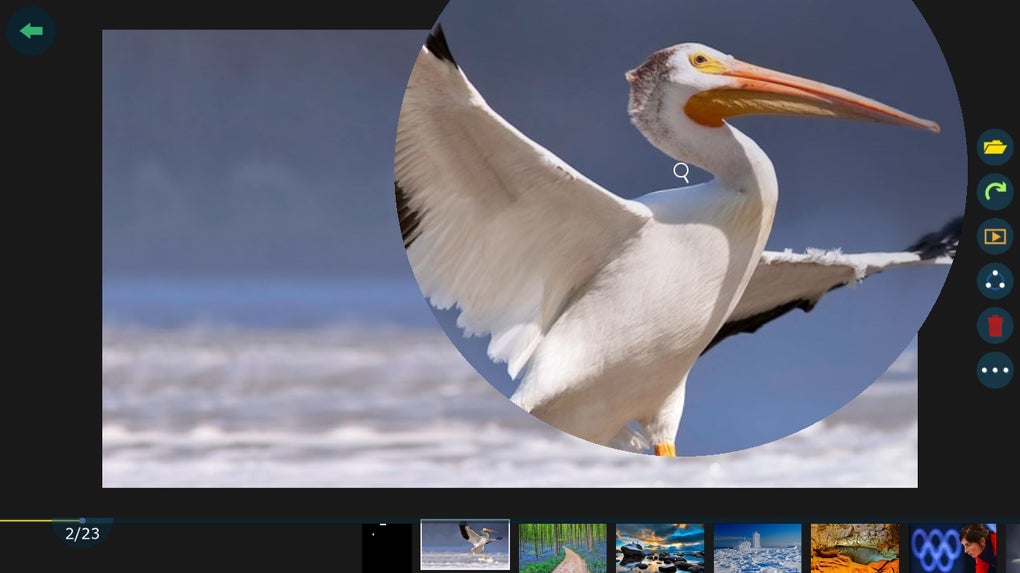
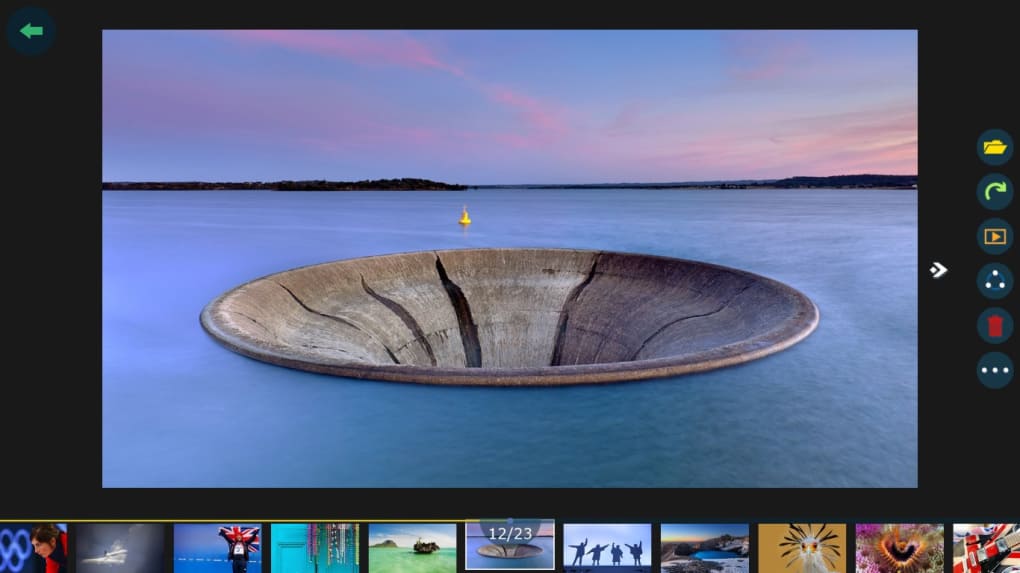
123 Photo Viewer is a lightweight, free photo viewer designed for users who need a clean and efficient way to browse large image collections. Built for the Microsoft Store ecosystem, the app installs with a single click and instantly provides a dark‑themed gallery that arranges thumbnails in a grid, displaying each file’s name beneath the image. Whether you’re a casual photographer, a designer reviewing assets, or simply someone who has amassed thousands of pictures over the years, 123 Photo Viewer eliminates the chaos of scattered files and lets you sort by date, name, or keep the default order. The interface stays intentionally minimal—no distracting ads, no unnecessary menus—so you can focus on what matters: your photos. Because it runs as a native Windows 10/11 application, the viewer benefits from the operating system’s security model, automatic updates, and seamless integration with the File Explorer context menu. In short, 123 Photo Viewer offers a straightforward, secure solution for anyone looking to view images quickly without the bloat of full‑featured editors.
Key Features & How to Get Started
- Simple dark‑mode gallery with thumbnail preview.
- Automatic file‑name display for easy identification.
- Sorting options: by date taken, file name, or custom order.
- One‑click installation via the Microsoft Store.
- Supports common image formats: JPEG, PNG, BMP, GIF, TIFF.
- Seamless integration with Windows File Explorer (right‑click > Open with 123 Photo Viewer).
- Free updates that keep the app secure and compatible with the latest Windows builds.
Installation & First‑Run Instructions
Getting 123 Photo Viewer up and running is intentionally frictionless. Start by opening the Microsoft Store on your Windows PC, then search for “123 Photo Viewer.” Click the Get button; the Store will handle download, verification, and installation automatically. Once installed, you’ll find the app pinned to the Start menu and listed under “Apps & Features.” To open a folder of images, right‑click any picture file, select Open with, and choose 123 Photo Viewer. The app launches instantly, presenting a black background that lets your photos stand out. Use the toolbar at the top to switch sorting modes, or press Ctrl + F to locate a specific file by name. Zoom in on any thumbnail by double‑clicking; a fullscreen view appears, and you can navigate between images using the arrow keys. The viewer also remembers the last folder you opened, making it convenient for recurring projects.
Compatibility, System Requirements & Performance
123 Photo Viewer is built exclusively for Windows 10 (version 1809 or later) and Windows 11. Because it is distributed through the Microsoft Store, the app automatically receives compatibility patches that align with the latest OS updates. The software requires a minimum of 2 GB RAM and 150 MB of free disk space, making it suitable for both low‑end laptops and high‑performance workstations. Its reliance on native Windows APIs ensures smooth scrolling and rapid thumbnail generation, even when navigating folders with thousands of high‑resolution images. Users have reported load times of under two seconds for directories containing up to 5,000 photos, thanks to the app’s efficient caching mechanism.
Performance Tips for Large Libraries
While 123 Photo Viewer handles large collections gracefully, a few best practices can keep the experience buttery‑smooth. First, store your images on an SSD rather than a traditional HDD; the faster read speeds reduce thumbnail generation latency. Second, avoid mixing extremely large RAW files (over 100 MB each) with standard JPEGs in the same folder; the viewer will still display them, but processing time increases. If you regularly work with RAW formats, consider converting to a lossless format like TIFF for quick previewing. Finally, keep the app updated through the Microsoft Store; each update includes performance optimizations and bug fixes that enhance stability on newer hardware.
Pros, Cons & Frequently Asked Questions
Pros
- Free and ad‑free, with no hidden fees.
- Minimalist UI that keeps the focus on images.
- Fast thumbnail generation, even for large folders.
- Secure installation via Microsoft Store.
- Automatic updates keep the app compatible with Windows updates.
Cons
- Limited to Windows; no native macOS, Android, or iOS version.
- No advanced editing tools (crop, rotate, filter).
- Only supports common image formats; RAW support is minimal.
FAQ – Frequently Asked Questions
Is 123 Photo Viewer completely free?
Yes, the app is free to download and use. There are no in‑app purchases or subscription fees.
Can I view RAW files like CR2 or NEF?
123 Photo Viewer can display RAW files, but performance may be slower compared to JPEG or PNG. For heavy RAW workflows, a dedicated RAW converter is recommended.
Does the viewer support slideshow mode?
Yes. Press F11 while in fullscreen view to start an automatic slideshow with configurable interval settings.
Will my photos be uploaded to the cloud?
No. 123 Photo Viewer is a local application; all images remain on your device and are never transmitted to external servers.
How do I report a bug or request a new feature?
You can use the “Feedback” option in the app’s Settings menu, which opens a Microsoft Store support page where you can submit bugs or suggestions.
Final Verdict
In a market crowded with heavyweight photo management suites, 123 Photo Viewer stands out for its simplicity and speed. It delivers exactly what its name promises: a quick, free way to view images without the distraction of editing tools or subscription models. If you need a secure, Windows‑native gallery that opens your pictures with a single click, this app is a solid choice. For power users seeking extensive metadata editing or cloud sync, you may need a more feature‑rich alternative, but for everyday viewing, 123 Photo Viewer hits the mark.
Call to Action
Ready to declutter your photo library? Download 123 Photo Viewer now from the Microsoft Store and experience a smoother, more organized way to browse your images.
Guides & Tutorials for 123 Photo Viewer
How to install 123 Photo Viewer
- Click the Preview / Download button above.
- Once redirected, accept the terms and click Install.
- Wait for the 123 Photo Viewer download to finish on your device.
How to use 123 Photo Viewer
This software is primarily used for its core features described above. Open the app after installation to explore its capabilities.
User Reviews for 123 Photo Viewer 0
No reviews found





